

myWorld
Once Zeno Mobile One is installed and before attempting to activate the app, ensure you have created a myWorld account.
Your Zeno Mobile One license is tied to an Entitlement ID, which you will have received in a PDF after placing your order.
An Entitlement ID is a 25 charachter alpha numeric code in this format:
xxxxx-xxxxx-xxxxx-xxxxx-xxxxx
This Entitlement ID must be registered in myWorld before you can start using Zeno Mobile One.
Registering your EID
Log in to your myWorld account.
Navigate to the My Products page.
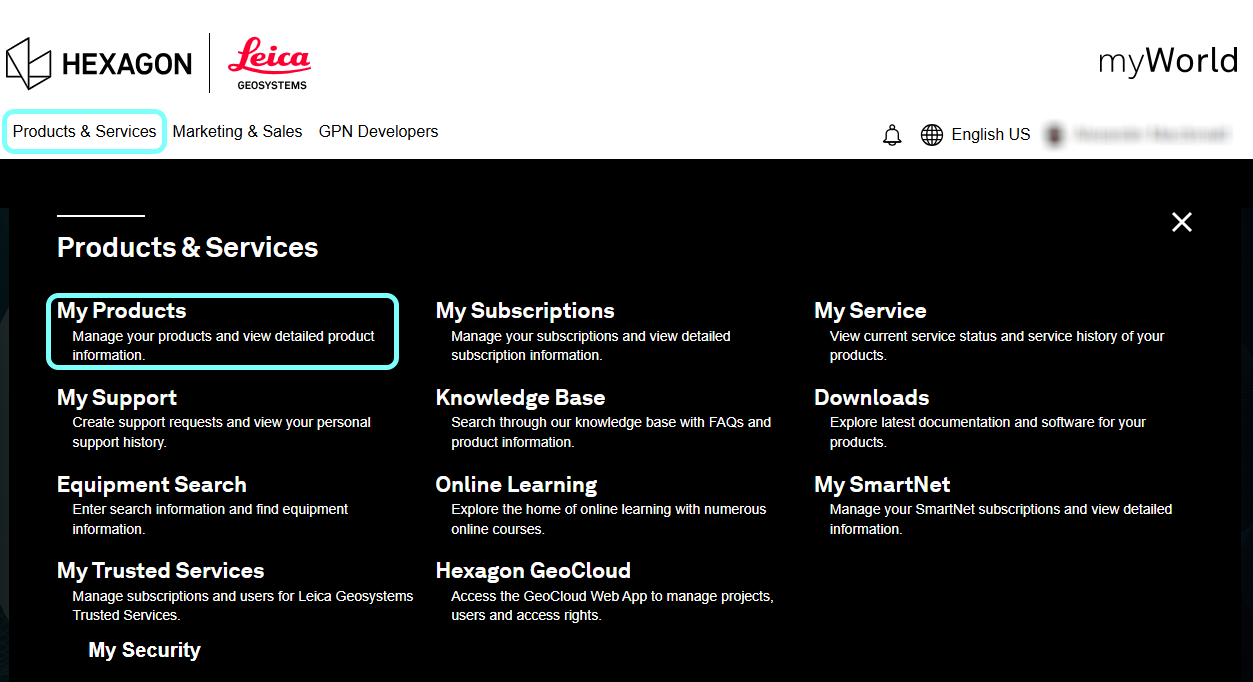
Click Add Product and confirm that you will be the user of the license by selecting Yes in the pop-up.

In the Add Product dialog, select Software and enter your Zeno Mobile One Entitlement ID.
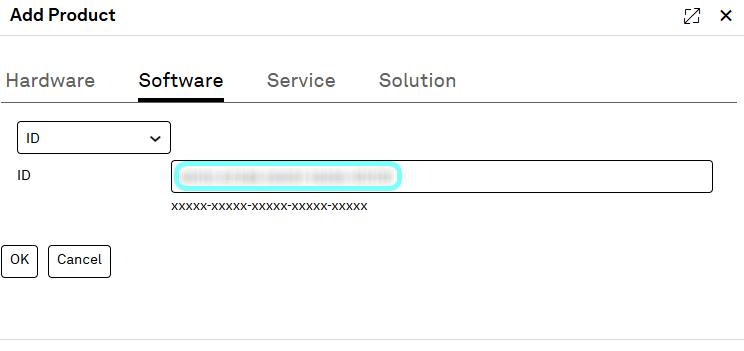
Click OK to proceed.
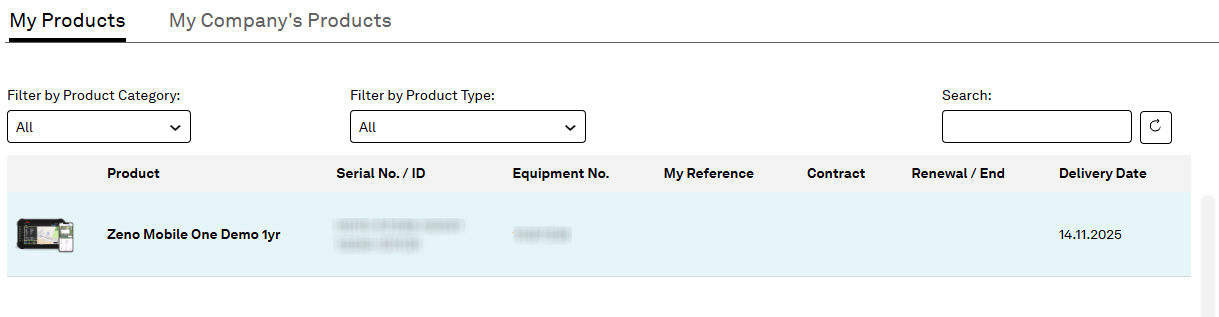
Once registered, your Entitlement ID will appear on the My Products page.
Managing your license
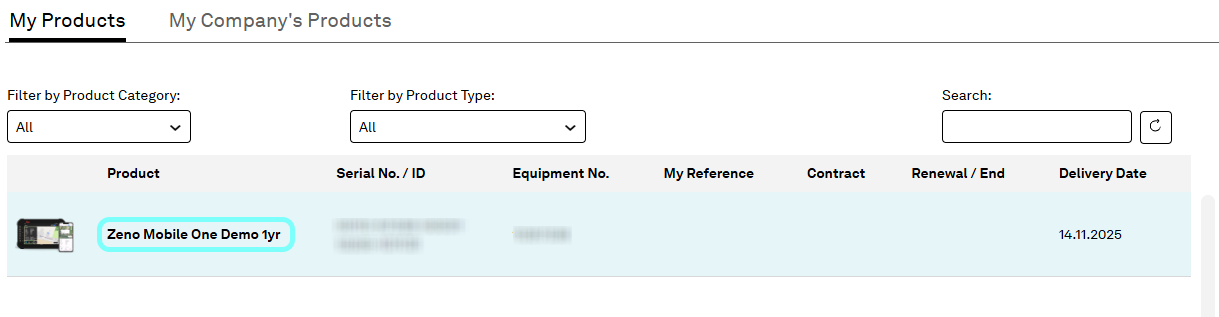
Click on the product name to view the license overview.
In the Users section, click the Manage button to add a user.
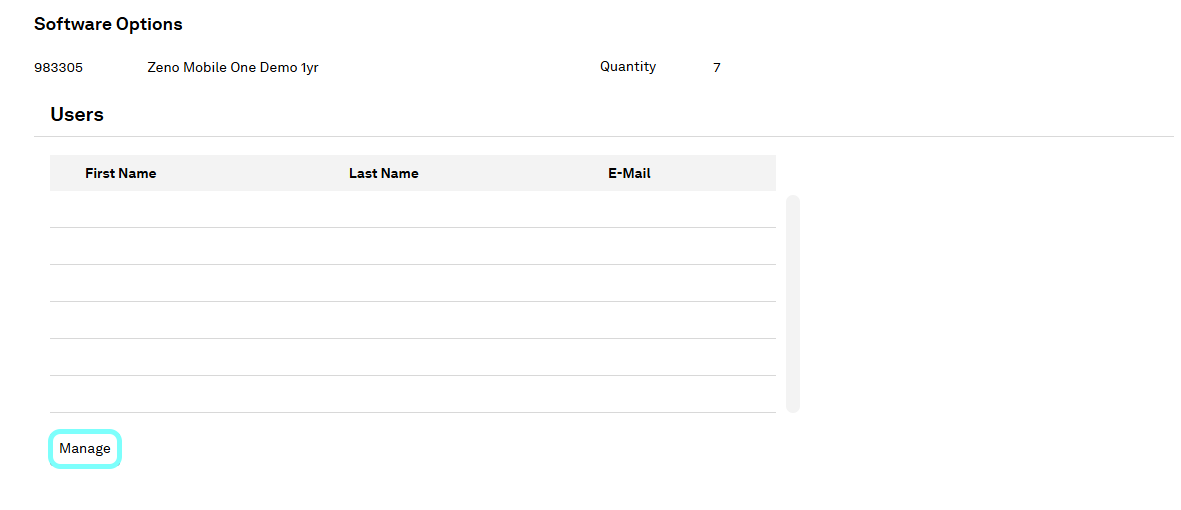
You’ll see a list of all myWorld users in your organisation.
Find and highlight the desired user, then click Add to assign the license to the user.
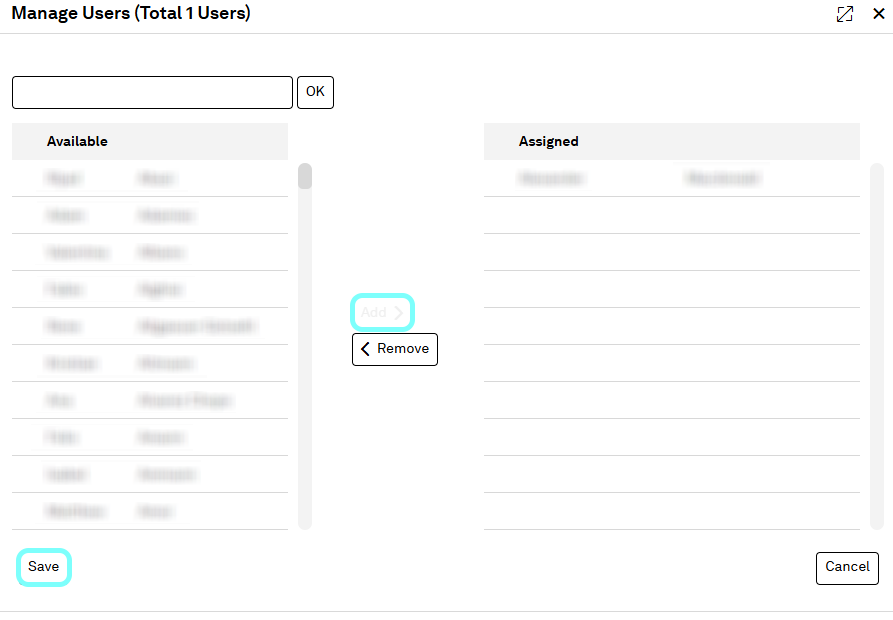
Don’t forget to click Save to confirm the changes.
It’s only possible to add one user to a particular license.
Launching the app
Now, with an active internet connection on your device, launch the Zeno Mobile One app:
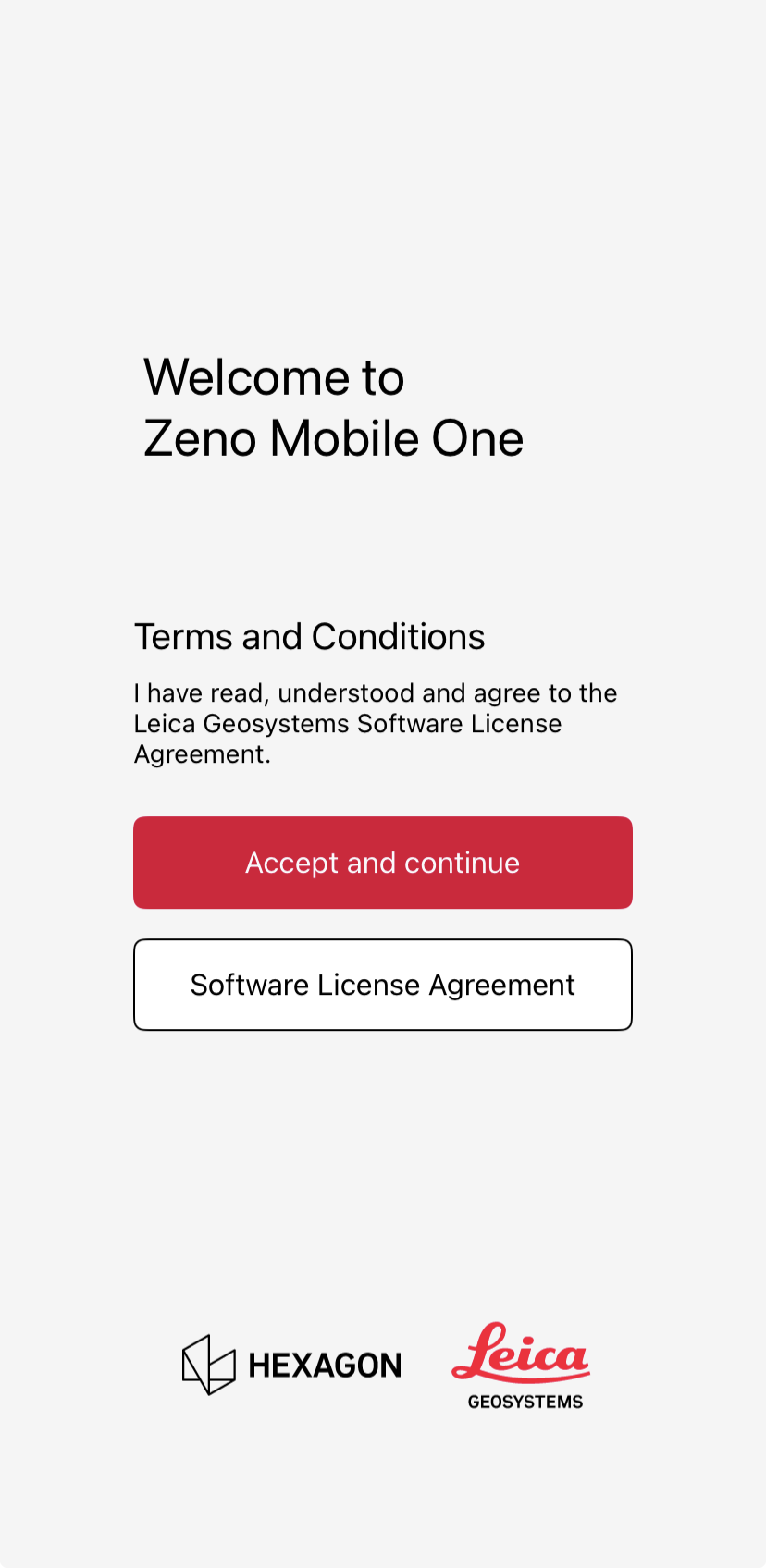
Tap Accept and continue when you have read the software license agreement.
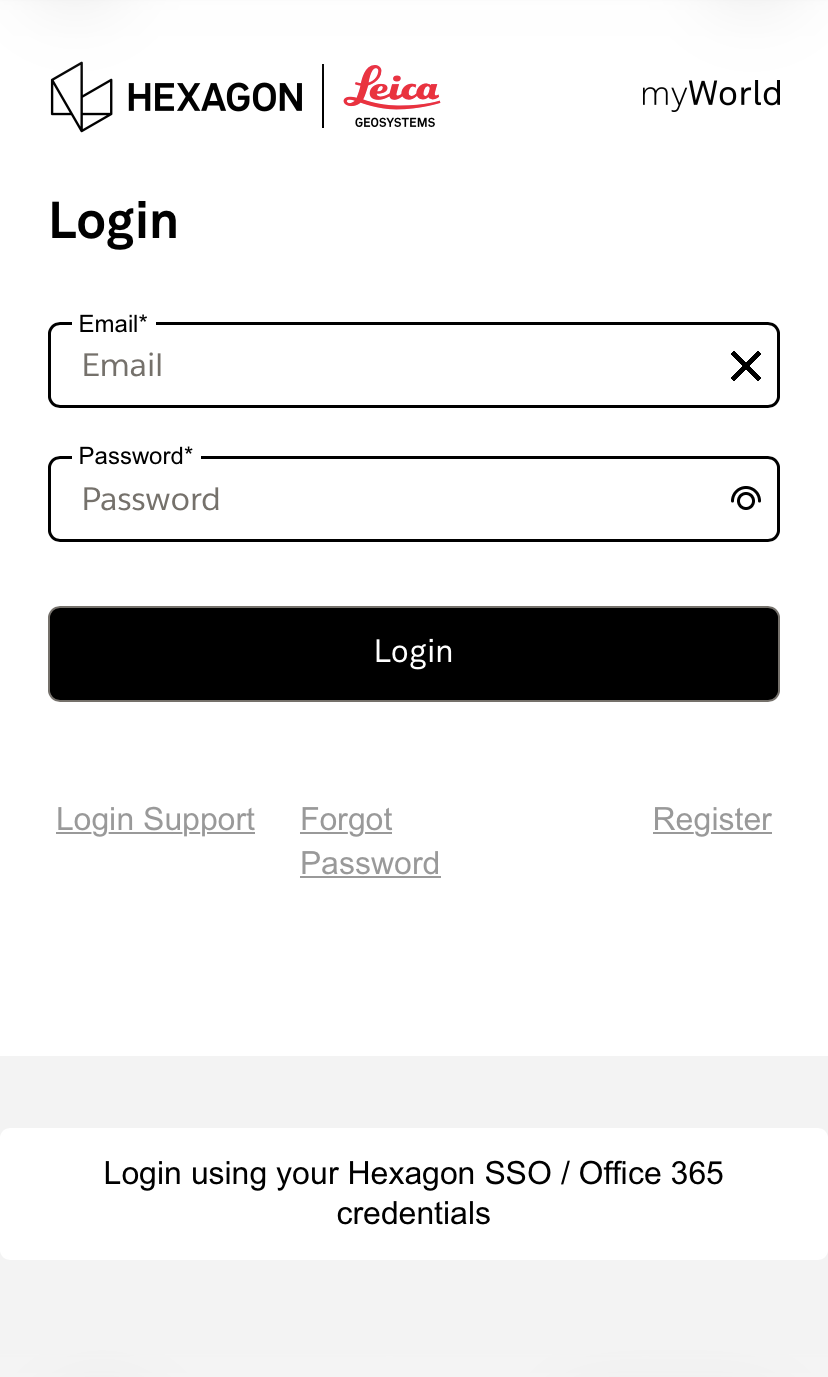
Tap Login with myWorld.
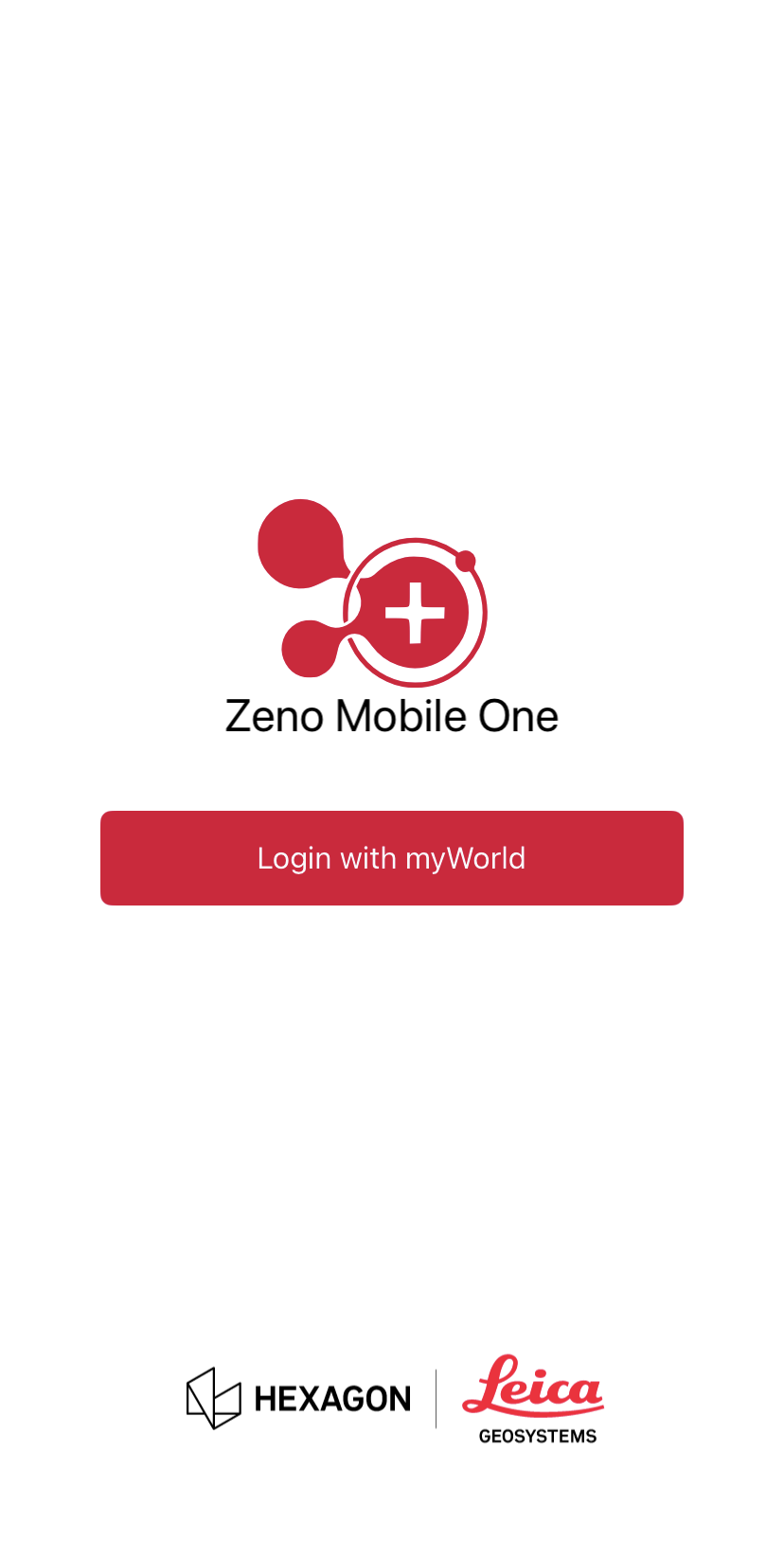
Enter your myWorld email and password, then tap Login.
Zeno Mobile One will activate your license, and the app will open, ready for use.