

Introduction
The Attributes sheet displays all attributes of active features and lets you edit them without leaving the main view.
To open the Attributes sheet, tap on the Attributes tab at the bottom of the main view and the sheet will appear.
The sheet can be expanded and repositioned to see more information by tapping, holding and dragging the sheet by the grey bar at the top, up or down.
To close the Attributes sheet you can either drag the sheet to the very bottom of the screen, or tap on the Attributes tab again.
Using the attributes sheet
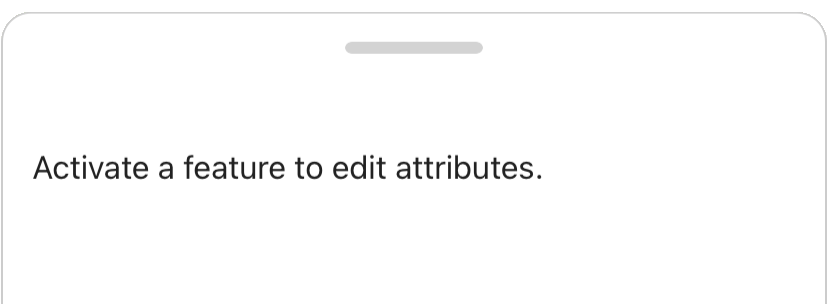
If you have no active feature selected in the map when opening the Attributes sheet, a message will inform you to activate a feature to edit it’s attributes.
When you have a feature active in the map and open the Attribute sheet, all the attributes for that feature will be displayed.
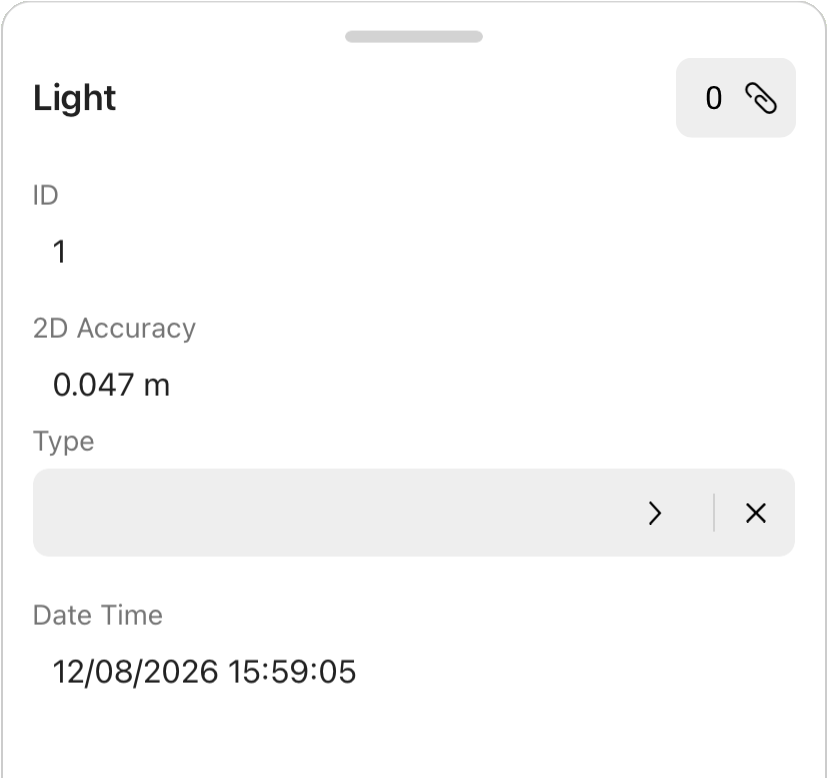
The name of the feature layer is shown at the top of the sheet, and all the associated attributes for that active feature are shown below.
Auto fields such as accuracy and date/time are view only. Editable fields such as list or free text and number fields and be tapped on and filled out with the onscreen keyboard or buttons.
The paperclip icon is the attachments button and indicates the total number of image, video or PDF attachments are associated with the feature. To add a new attachment tap on the paperclip icon and the files as necessary.
Multi features
A multi feature is one or more features stored at the exact same location. When you open the Attributes sheet for a multi feature, all of its features and their attributes are displayed one after another on the sheet.
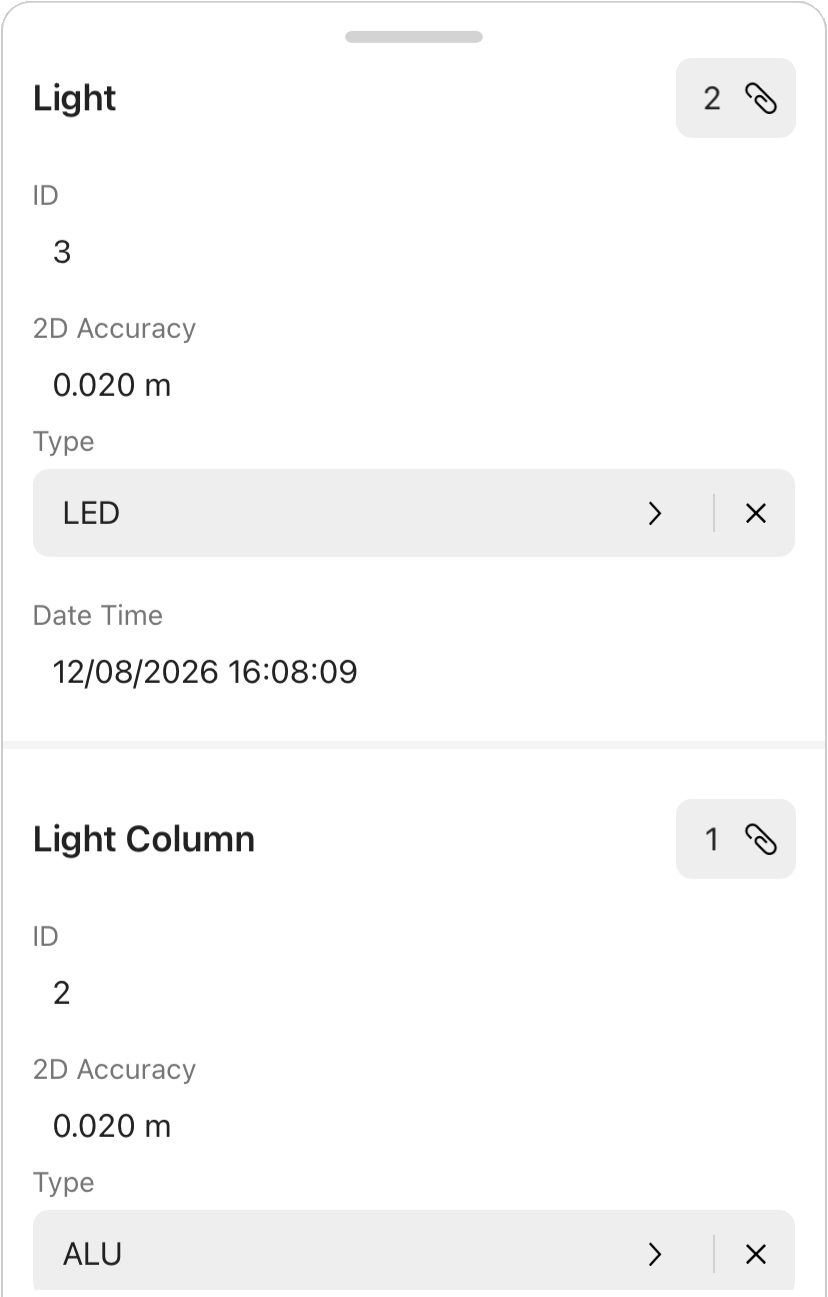
You can scroll up and down the sheet and see the different features divided into sections by the differing feature names.