

Introduction
The Messages sheet on the main view reports important background activity in the app and notifies you when an action is required.
To open the Messages sheet, tap on the Messages tab at the bottom of the main view and the sheet will appear.
The sheet can be expanded and repositioned to see more information by tapping, holding and dragging the sheet by the grey bar at the top, up or down.
To close the Messages sheet you can either drag the sheet to the very bottom of the screen, or tap on the Messages tab again.
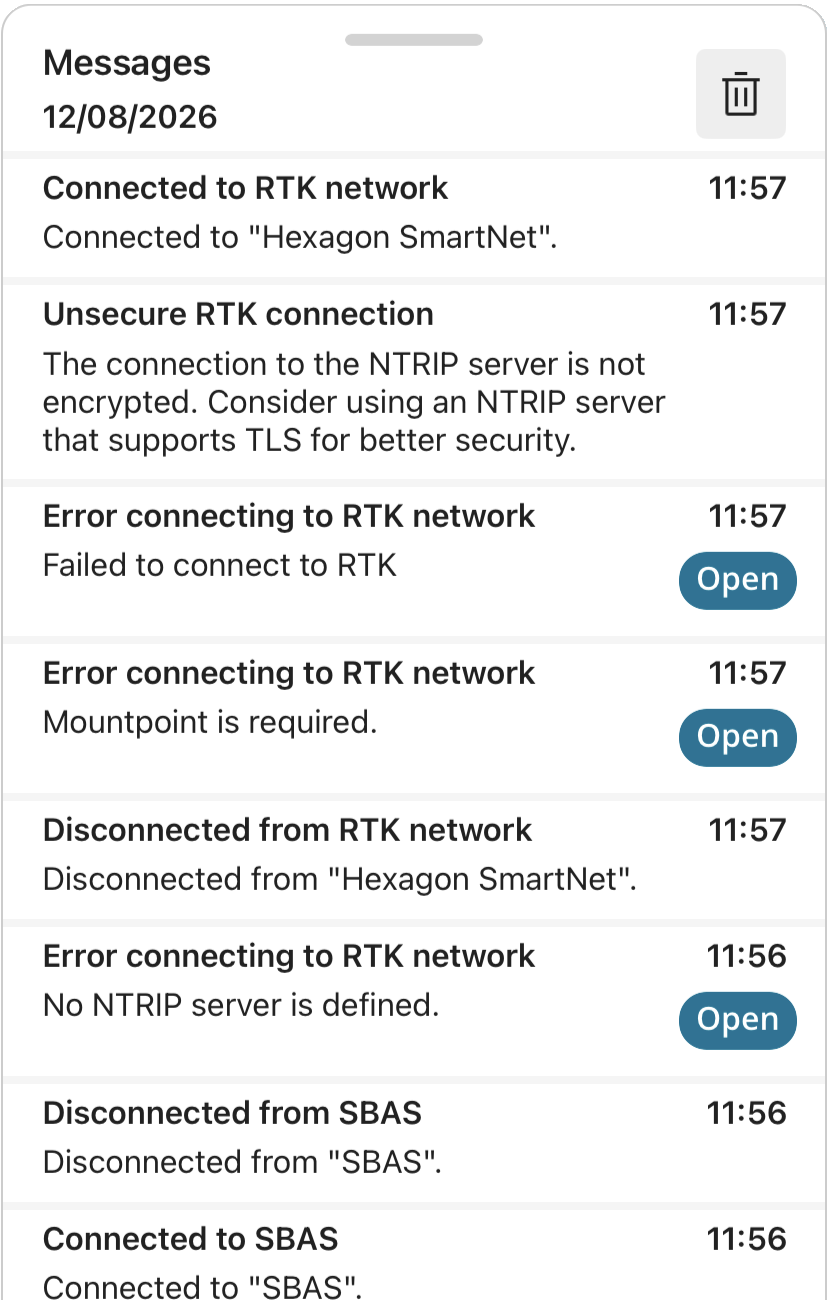
Messages are grouped by the day they are displayed and the date is displayed in the top left of the Messages sheet. All messages are ordered chronologically.
You can scroll up and down within the messages sheet to read all available messages.
If the message sheet is full of messages you can remove them all by tapping the trash can button. All messages will be removed and will re-appear as and when the Zeno Mobile One reports them.
Messages that require an action will have an Open button available to tap on to take you straight to the applicable menu.